Sunday, 19 February 2017

5 Cool Games Like Super Mario Run For Android


Super Mario Run is one of the best and a new kind of Mario game that you can play with one hand on your Android device. Nintendo DS has earlier in 2016 released the Super Mario Run game on the Apple Store which was only available for iOS device. The Fans of Nintendo DS who are on the Android platform have been eager to get Super Mario Run game on their phones. Now if perhaps you've missed the good news, then Nintendo's long-anticipated Super Mario Run game has arrived on android and as i am writing this article, Super Mario Run is available on the Google Play Store with some regions restricted.

Super Mario Run reputation was brought about by the constant moves used during gameplay. Thus you can jump to navigate and show off a particular stylish/smooth moves, gather coins and reach your goal. However this actions can all be achieved depending on the timing of your taps. Now let's face it, while Super Mario Run might seem to be fun, there's also a need to try out other games like Super Mario Run and conclude on which amongst these games is the best after all. Thus after vetting the Google Play Store, we decided to curate a list of some excellent and noteworthy games like Super Mario Run. They're no doubt probably the best alternatives to Nintendo's Super Mario Run game for Android.

1. Rayman Adventure


Rayman Adventure brings a wonderful visual that will revamp the way you play Super Mario Run. The gameplay unravel Rayman (the fearless adventurer) and Barbara (his Viking companion) as the main characters. The story narrates an enchanted forest that's in trouble, after the ancient eggs that sustain the sacred tree have been stolen and scattered across the world. Thus you've to set out in search of the Incrediballs’ eggs to breathe new life into the sacred tree. This game brings the same control we've seen in Super Mario Run except the fact that their storyline differs. Rayman adventure brings an exciting mix between action and exploration, and while on a mission, you've to battle enemy's such as minotaurs, bandits and many other monsters. Overall this game is fun and it's the perfect alternative to Super Mario Run. Currently over 10 million people downloaded Rayman adventure from the Google Play Store.


2. Leo's Fortune


Leo’s Fortune is another masterpiece platformer adventure game for Android device. The
game brings dazzling visuals and moreover it's insanely gorgeous. If perhaps you haven't played this game on your phone, then you're already missing something more adventurous. The game tells a story of a man (Leopold) who just returned home to find out that all his gold has been stolen! For some devious purpose, the thief has dropped pieces of his gold like breadcrumbs through the woods. Despite the pickle traps, he is left with no other choice but to follow the trail. Whatever lies ahead, you must recover his fortune. Leo's Fortune brings a perfect control that's suitable for both android and tablets. During gameplay you've to journey through the epic world filled with lush environments from mossy forests and arid deserts, to pirate cities and snowy mountains where you'll hunt down the cunning and mysterious thief that stole your gold. Currently over 500 thousand people downloaded Leo's Fortune from the Google Play Store.


3. Super Plumber Run


Off all the numerous Android platformer game that has been developed, I'd say that Super plumber run is more identical to the Nintendo's Super Mario Run. Both game brings the same controls. Once the character automatically starts running, you can press to jump. Super Plumber Run is no doubt a fun and addictive endless running game with a twist. During gameplay, you can easily Run and Jump through a cute and challenging world while avoiding obstacles and smashing your enemies. Just like Super Mario Run, you can collect the bouncing Mushrooms to get bigger and once you collect more of this mushrooms, then you'll become a giant smashing through every walls without any obstacle. Overall Super Plumber Run brings a a super gameplay, super challenge and it's super fun!. Currently over 10 thousand people downloaded Super Plumber Run from the Google Play Store.


4. Wind-Up Night 2


Wind-Up Night 2 is yet another cool and action packed platforming gameplay for Android that sets in a beautiful 3D world. The game brings insidious levels and incredible graphics that will engage you non-stop. This game has similar fighting skills with Super Mario Run, Wind-Up Night 2 unveils a knight fighting his way through walls and jumping over a spike trap while collecting coins. During gameplay you can easily customize your knight armour, engage into side quests and battle into the tournament mode. Also you can use power-ups and items to play your way. Wind-Up Night brings a level filled with suspense and a whole slew of new mechanics. Overall the game will forever revamp the way you play Super Mario Run. Currently over 10 million people downloaded Wind-Up Night 2 from the Google Play Store.


5. Adventure Beak


If perhaps you're looking for the best alternative to Nintendo's Super Mario Run game, then "Adventure Beaks" should definitely be your number one choice. The game has 90% similarly with Super Mario Run and just like Super Plumber Run, it's quite addictive and fun to play. Adventure Beaks is the only platformer Android game with a quest to assemble an expedition party of elite penguin adventurers. The game brings a captivating quest where you'll need to explore ancient ruins and exotic lands on a journey to discover the secret of the Artifacts!. Thus you can run, jump, slide, and dive your way through tricky traps, enemy hoards, and cavernous mazes, all with simple, responsive touch controls. With the 50 tricky levels, 150 mind-blowing missions, 16 brutal challenge, 198 crazy clothing items to dress your penguins with, there's definitely no way you can finish this game in a hurry. Currently over 1 million people downloaded Adventure Beaks from the Google Play Store.


Final Words

Nintendo's Super Mario Run game alternatives are numerous, if you really need something more fun and addictive to play, then the above listed games are definitely the best choice. We've seen the visuals the Super Mario Run game unravels, although it's a bit not as stunning as you might think but the platformer game is as perfect as ever. Super Mario Run refreshes our memories back in the old days and since it's out for Android, then it's time to try something that's better, fun, captivating, addictive and overall brings stunning visuals.

Thursday, 16 February 2017

How To Install and Use Microsoft Cortana On Android


We've seen the Google Assistant and Apple's Siri in action. They're probably the best voice assistant app for Android and iOS respectively. But are they really the best? This topic however will be reserve for another day.  If perhaps you've been using a Windows phone or Windows 10 PC then you'll be familiar with "Cortana". The app (Cortana) is Microsoft’s attempt to compete with "Apple’s Siri" and "Google Assistant" which actually seems as if there plans are slowly working considering how "Superior" and the number of Android users that have been using the Cortana voice assistant app.

In a nutshell, Cortana is an intelligent personal assistant created by Microsoft to help better your life through voice commands. Cortana can set reminders, recognize natural voice without the requirement for keyboard input, and answer questions using information from the "Bing" search engine. Apart from this, Cortana can find opening-hours when on restaurant sites, show retail coupons for websites, sing a song, show weather information in the address bar, crack jokes, and get the latest popular sports games.Overall Cortana has a great sense of humor!.

Install Cortana


Cortana first made it's appearance on Windows 10 and was later made available on the Windows phones. Now Microsoft has officially released the Cortana app for Android on the Google Play Store. In the initial phase, they have decided to release Cortana for Android only on selected countries such as United States and the China region. But in a few days, it will be available on other countries. If perhaps you're the impatient type or if Cortana hasn't been made available on your region, then you can install the app from the Google Play Store by using this guide or rather download the app from a third-party source.

Set It Up

Once the Cortana app is installed on your Android phone, simply locate and open it from your device app drawer. The initial opening of "Cortana" will require you to agree to the apps term's and conditions, simply "Accept" this. Next you've to "sign in" to your Microsoft account, thus provide your email, phone number or Skype name followed by your password. If perhaps you don't have a Microsoft account, you'll want to create it from here. Now Cortana will prepare and then ask you to provide your name, enter the name of your choice and you'll be taken to the app homepage. If Cortana prompt you to enable your "Location", endeavor to do it.


Use Cortana

Cortana unravels a simple, customizable and yet full of information "Homepage" where all the "magic" will happen. The home section is where you can either type your queries or start a voice action. These commands can be seen at the bottom right corner of the page, you can type or use the microphone icon to perform any kind of voice command. For instance you ask Cortana "Who is the tallest woman on earth"? and she will try to understand and answer your questions to the best of its ability.


Also one can easily ask Cortana to search for content, set reminders/alarms, place phone calls, send messages, show the weather, convert currency and more. Just tap the text or microphone icon to jump into action and perform this commands. Now look at Cortana main app interface, you will see relevant informations which includes contents like news, weather, local events, foods, finance, sports, travel and even more. This contents can all be controlled from the Cortana's "Notebook" section which we're going to dive into now.

Notebook

Cortana's "Notebook" idea is all about personalization, this is one thing you've to know about any human or intelligent assistant. Unlike the Google Assistant or rather Google Now, Cortana requires you to manually customize your experience in other for her (Cortana) to provide you with better information and know the kind of "Cards" you play. To access the "Notebook" section in Cortana, tap the "Profile" icon at the top-left corner of the screen, then "Notebook". Once here, you'll be presented with tons of options to customize the experience.


First, select the "About me" option and change your name or nickname. Note that this can actually be whatever you like. Now when you scroll down from the Cortana's"Notebook" section, you'll be greeted with more options to customize their experience. If i where you, I'd go through all of them individually and set things up. This can actually cause alot of hassle but it will really help Cortana to get things started and provide you with the cards or information you love most. Even though customizing the experience seems tough, it's probably something i like.

Settings

From the "Profile" icon, you can also see the Cortana "Settings" options. This is probably what everyone loves as it allows you to customize the Cortana experience to the brim. Now in Cortana's Settings options, you can select or choose to Sync Notifications which is of essence when you want to see your phone Notifications on your PC. You can customize Cortana's color, change language & region, create shortcuts to Cortana app on your device home screen. The “Hey Cortana” option is not enabled for Android users, thus you can enable it from the app settings options and from then henceforth, you can say "Hey Cortana" to start a voice search from the Cortana app.


Others

Now from the Cortana main interface or rather homepage, once you tap on the "square dots" beside the microphone icon and text search, Cortana will unravel various options you might want to check out. Options such as reminders, weather, news, alarms and more. One unique things i discovered that Cortana can do is to "Sing a Song". Yep! She can probably use her nice voice to sing a melody that touches the soul. Apart from this, Cortana can crack funny jokes and thus making you laugh throughout the whole day.


Final Words

Guess we're through already! Cortana is the perfect alternative to the new Google assistant and perhaps to the Google Now also. The app provides advance features which the Google Now doesn't bring and moreover it's smooth as butter and very easy to use. Apart from the fact that the "Google Now" integrates with all the Google services on my android phone, I'd would've chosen Cortana to it. If perhaps you're using the non-pixel smartphone, then Cortana will probably be the perfect choice to the ever wanted "Google Assistant". There's no root access needed, there's no hassle. Simply use Cortana and discover how intelligent a personal assistant can be.


Wednesday, 15 February 2017

TrueCaller vs. DU Caller Review: Identify and Block Spam Calls On Android


Truecaller and DU Caller has always been one of the most popular Caller ID and Block Apps for android. The competition between the two apps has arguably been fierce considering the fact that both apps have there own Pros and Cons. One of the most common thing about these two app is none other than the fact that they both perform the same functions. Which is to "Identify Unknown Callers and Blocks Nuisance Calls". We've detailed several reviews on some of the best and unique android apps that brings hidden but plethora features, thus Truecaller and Du Caller will definitely not be an exception. However before we proceed further let's brief or rather highlight you on some chit-chats.

Now let's assume you are sitting on the couch and you receive a phone call from an unknown number, not once but a lot of times! It will be hard to Identify who’s behind all these calls right?. I guess your answer is probably Yes. This is where the Truecaller and DU Caller comes into the picture. As a student, i have had several if not tons of spam calls per day and this calls are causing me a lot of hassle. Been eager to answer or pickup a phone call whose caller identity is unknown to me is certainly what i detest and thus i have tried my very possible best to block all those Nuisance Calls without hesitation. Thanks to apps like Truecaller and DU Caller. They're a newer and better way to find the person behind those spam calls you receive and perhaps block them if you want. Now before installing these apps (Truecaller and DU Caller) read this article to the end. Your decision might be slightly more complex.

Truecaller Review

Truecaller is one of the super-powerful caller ID app for android which tells you who is calling. Thus you'll no longer see stuffs like 'Anonymous' or 'Private Number' on an incoming call. Truecaller as said earlier on identifies unknown callers and blocks nuisance calls. The app also allow you to see the names and photos of people who calls, even if they aren’t saved in your phonebook thus making your calling experience smarter and more delightful. Truecaller app interface is quite simple and intuitive and it brings tons of features that are of essence.

Getting Started

Truecaller is a lightweight app that's less than 10MB in size. Thus we found the process of installation to be very simple. Once you download and install Truecaller on your phone, you've to go through the process of registration which requires you to choose your country and provide your phone number. On the next phase you've to enable "Enhance Search" which helps to improve the accuracy of caller ID. Now swipe through the introduction to get into the app main interface.


1. Caller ID

We've already highlighted the fact that Truecaller shows the "True Caller IDs" of every incoming calls on your android phone instead of the Private or Unknown Numbers. Apart from this, one unique thing i have come to love while using Truecaller is the fact that it shows Full Contact ID info of every phonebooks on your phone including location, name, address, operators, numbers and email. During incoming calls, Truecaller shows the photo of your callers even when you don't have those numbers saved on your contacts. The app also allows you to "Add tags" on every numbers saved on your phonebook, this helps to describe the numbers better.


2. Friends Search

Truecaller experience is more delightful than you can ever imagine. With it's plethora features, the app truly does it's functions better. Truecaller brings the most powerful "Search" option that allows you to search over 2 billion phone numbers without any hassle. This option can come in handy when you're in dear need to find the number of an old friend or if perhaps you've mistakenly lost an important number, you can simply input the recipient name or number on the search bar and if you're lucky, then the number or name you searched earlier on will be smiling at you. The "Delete" icon beside the contacts you found makes it convenient to erase your search results.


3. Call Blocker

The Call Blocker integrated in Truecaller is no doubt my Most Used and favourite feature. Whenever you receive a spam call or if someone has been disturbing you, then you don't have to hesitate in blocking that person. From the "Block" section, Truecaller unravels two options, the "View Spam List" shows the number and contact info of the most common spammers on your list while the "Block Settings" section unveils the option to block telemarketers and nuisance calls. You can also choose to block any hidden numbers that shows  "Unknown" during incoming calls and i personally love settings this "Block Methods" on Automatic. The floating "Bubble" icon allows you to manually choose what to block.


4. Smart Dialer

Truecaller brings with it a beautifully designed material Smart Dialer that can conveniently replace the stock dialer app on your android phone. The Truecaller in-built dialer is awesome and it's of essence when it comes to the stage of performing different functions such as dialing a number and then calling someone at the same time. We've seen numerous android caller ID and blocker apps, but most of them have limited features, thus Truecaller unravels them in a platter of gold and consuming it, is certainly a must. From the Truecaller's app main interface, you can see the floating "Dialer" icon which gives you the opportunity to navigate to your contacts, select numbers and overall place calls at will.


5.  User Interface

Every android apps brings a pretty intuitive and perhaps simple user interface and Truecaller doesn't make an exception. The app unravels a material design look that captivates its users, upon installation of Truecaller, it will automatically create a shortcut on your devices home screen giving you access to navigate through the app itself and the dialer without any hassle. The Truecaller hamburger side menu brings the users profiles, the Settings and other options. Once you dive into the app "Settings" options, you can change the Truecaller appearance and tinker with other options.


Is Truecaller Save? 

This question has always been asked frequently from folks who'd wish to use the Truecaller android app. Apart from the fact that Truecaller app loads your phonebook to make it searchable or public, it's definitely"Save". From the user profile, Truecaller brings an option to input your email address, I didn't find this of essence and thus i ignored the request since it's optional. Always remember that 3G or Wi-Fi is required for Truecaller Caller ID to work and Operator charges may apply.


DU Caller Review

DU Caller is another competitive caller ID app for android. The app helps you to identify unknown number and block unwanted calls. Unlike Truecaller, DU Caller is a Caller ID and Recorder app which conveniently records all your calls without any hassle. The app been multi-lingual, brings the largest phone number database where you can recruit the numbers of different caliber of peoples. In summary, DU Caller makes it possible to easily wave harassing calls goodbye. There isn't much difference between DU Caller and Truecaller except for the advance feature which DU Caller brings and we're going to unveil it below.

Getting Started

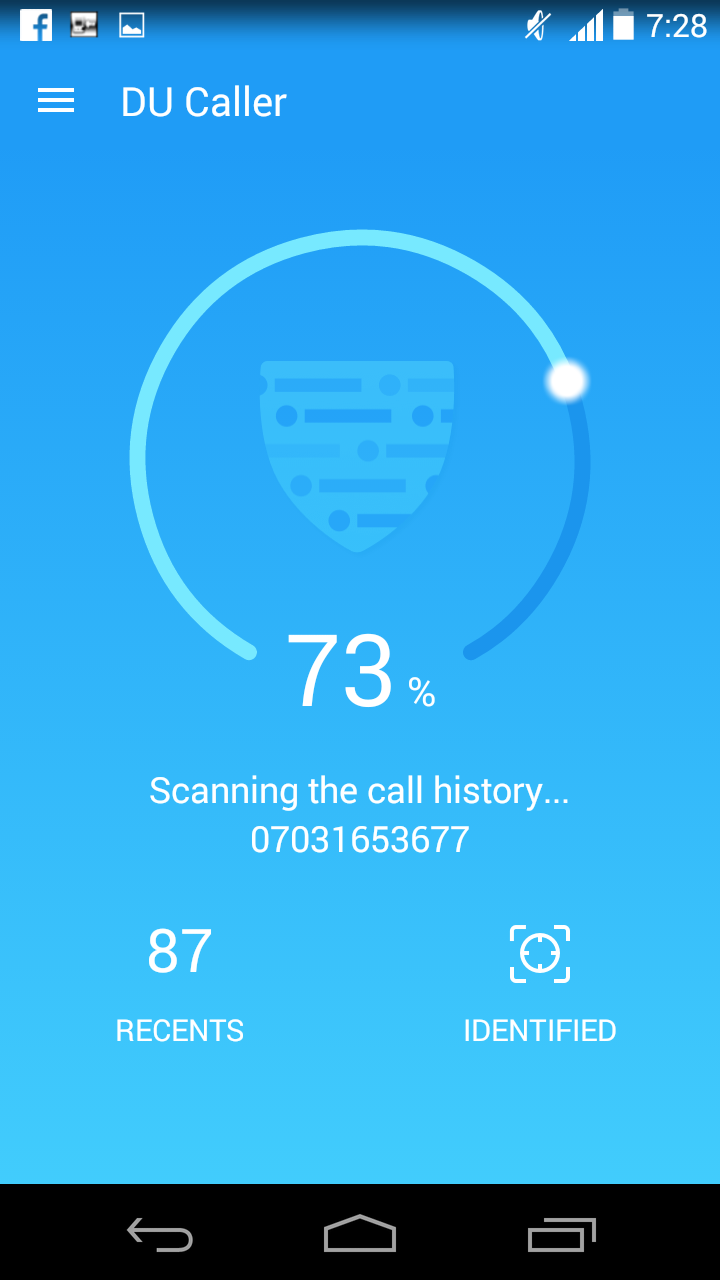
The installation of DU Caller app is quite simple, once you've got the app securely installed on your android phone, it will guide you through a brief introductions, simply swipe the screen from the left to get this one going. Now once you tap on the "Use DU Caller" button, the app will automatically start scanning all the "Call History" on your android device. When the scanning process is completed, you'll be taken to the DU Caller's main app interface.


Features

DU Caller unravels smart features that you'd love, one unique feature the DU Caller app brings is the ability to "Record And Block Spam Calls". Yes! You heard me right, the app provides high quality sound for easy call recording. This lets you record any phone call you want and choose which recordings to save, you can set which calls are recorded and which are ignored. While this feature might seem intriguing, it's however limited to Samsung Galaxy device. The call Recorder feature on DU Caller provides automatic and manual call recording functions and you can manage and set password protection to keep your recordings secure. In summary the call recorder integrated in DU Caller is the unique feature that Truecaller doesn't possess.

1. Caller ID

Just like Truecaller, DU Caller shows true caller IDs instead of unknown or private numbers, so you can always know who is calling before you pick up. The app also shows full Contact ID info of a person, including the names, types, numbers, addresses, and operators. DU Caller app automatically warns you of harassing calls by indicating a red-color and the app provides a one-second speedy phone number recognition function.


2. Call Blocker – Blacklist

DU Caller is a perfect call blocker app, which can instantly hang up on numbers on the blacklist in just a second. All you've to do is to add a number to the blacklist and the app will automatically do the rest. DU Caller allows you to block calls from common numbers, hidden numbers, overseas numbers, and numbers that are not in your contacts. You can also add any numbers to the blacklist, including your ex, debt collectors, and salespeople. Once the call has been blocked, DU Caller will notify you of it.


3. Friends Search

Just like Truecaller, DU Caller also brings a friend search option. Once you swipe to the "Search" section in DU Caller's main interface, you'll not only search for unknown callers by number, but also you can search for names to find people you want to contact. DU Caller’s brings a vast database of phone numbers that makes it easy to perform a reverse phone number search on any caller. While using DU Caller android app, you can convinently hide secret calls and call logs to protect your privacy.


4. Smart Dialer 

DU Caller brings an in-built smart dialer just like what we saw in Truecaller. The integrated smart dialer can come in handy for variety of purposes, thus you can quickly search in your call logs and contacts, then enjoy the smoothest dialing experience. DU Caller does not replace, change or interfere with your phone’s dialing application but you can manually choose to replace it, since it seems to be a perfect alternative.


5. Private Contacts

The "Private Contacts" is one of the cool features offered by DU Caller. It's just like encryption, the Private contacts main function is to hide a list of contacts that you don’t want anyone to know you’ve been talking to. Thus DU Caller ensures that the numbers added into the Private Contacts option does not show up in the call history or anywhere in the phone. To view your call history again, you've to unlock the Private Contacts with a pattern lock.


6. User Interface

DU Caller brings a pretty intuitive user Interface, the app has been coded clean and from the user profile, you're provided with varieties of options to dive into. However one thing i noticed is that the "Life Assistant" has been removed from the update, this option back then provides a directory of the most commonly used numbers for various services around you. Thus you can get numbers from shopping destinations such as Flipkart and Amazon. Th DU Caller "Settings" unravels options that you can tinker with, to get things going.


Is DU Caller Save?

DU Caller is 100℅ save, the app is very simple to use and the startup process runs you through a brief introductions. Unlike Truecaller, DU Caller doesn't require your phone number during the initial startup, but you might want to give them this info when you're setting up your Caller ID. Also DU Caller doesn't ask for E-mail address which makes it more secure and convenient.


Final Verdict

Both the Truecaller and DU Caller android app are good. The apps seems to perform the same function but the DU Caller provides advanced features which is however "Limited". When you need to record a phone call and save them as evidence, then DU Caller comes into the picture. Apart from this, Truecaller and DU Caller will immediately give you a detailed caller ID for an unknown number and when you don’t know where to find your old friends, you can use Truecaller or DU Caller to search for their numbers. The screenshot below unveils both the Truecaller and DU Caller in action.


Upon receiving an incoming call from one of my country's operators which i definitely knew was a Spam Call (a way to promote their offers), Truecaller immediately branded it a "Spam Call" and provides an option to "Block" it. While on the other hand DU Caller left me to figure out if the call is a Spam Call or not (intuition). Overall i can't actually tell you that Truecaller is better than DU Caller (vice versa) but if perhaps you're to ask me to make a choice, then I'll definitely go for "Truecaller". If you're using a Samsung Galaxy device, then the voice recorder integrated into DU Caller should be enough reason for you to choose it and moreover the "Private Contact" feature in DU Caller provides a powerful encryption for your call history.

Tuesday, 14 February 2017

Nokia 8 Rumor Review, Features, Specs and Price


Nokia has promised to launch so many smartphones of their brand and i am still wondering, are these upcoming smartphones of Nokia all going to be launched in 2017? Seems like Nokia is trying to cover up all those years of their silence over Android smartphones by programming tons of Android devices with the brand name ‘NOKIA’ crested on it and all night be launched in 2017. We all know how long we have missed the specs and features of Nokia company, but so far so good we are going to have more of them this year.
Nokia 8 may not be the first Nokia smartphone you've heard about but it's among the list of them expected to come out in 2017. I just can't wait to handle any of the smartphones. Well let's discuss the review, rumored specs, and release date of this upcoming Nokia 8 smartphone.

OPERATING SYSTEM

Nokia 8 is expected to come out of box, running on the latest Android 7.0 Nougat OS, holding a Chipset of Qualcomm MSM8998 Snapdragon 835, a CPU of Octa-core 4 × 2.25GHz, as well as an Adreno 540 GPU.

DISPLAY

Nokia 8 having its screen size to be 5.7 inches with a resolution of 1440 × 2560 pixels has an IPS LCD capacitive touchscreen (with over 16M colours) as its display type. Its screen is protected with a Corning Gorilla Glass 5.

MEMORY

Now let's discuss about its memory. Nokia 8 is expected to come out of box, housing a 64/128GB space as its internal memory, i.e Nokia 8 may be unleashed in two types with both having a difference in their internal storage memory.  But both devices are expected to house MicroSD of up to 256GB as both types have card slot. All these storage spaces of Nokia 8 are maintained by a whopping 6GB RAM.

CAMERA

One of the most impressive features of Nokia 8 is its camera. Nokia 8 is expected to hold on to a 24MP primary (rear) camera with an autofocus, phase detection and a dual-LED Flash. Of course all these put together with its 24MP should give a clear and real picture. Other features of its primary camera include face detection, Geo-tagging and touch focus. Speaking of the Nokia 8 secondary camera whose capacity is 12MP, this certainly will make the device suitable for selfie lovers and video call makers, of course a device with 12MP will definitely give a clear picture.

Final Words

Nokia massive comeback is no longer a rumor, when the Nokia 6 was first released in China, it's sells where tremendous. We've seen numerous concept images of the potential Nokia smartphones and they're undoubtedly superb. Most of this (Nokia) android device brings premium specifications and thus they're slowing and steadily winning the hearts of various consumers. The competitions between the smartphone company's will be fierce since the father is back. Overall Nokia 8 is a spontaneous device which brings top notch features and it's worth budgeting for.

Top 6 Best Console Emulators For PC


Super Mario was the best video game that floated my "little" mind when i was young and up till now, it's still one of my many favourite retro games. The Super Mario, Pacman, Tetris etc. are hard to come by now and thus sometimes we'd feel like revisiting our childhood days in other to play those games once more. Back in the older days, consoles actually didn’t focus much on game graphics because all they ever thought of was the gameplay and the stories that revolves around in the games. But the case however can now be told in a different way as gaming in this modern era has evolved so much to bring a stunning life-like visuals.
Also Read: Top 10 Best Emulators For Android (Free And Paid).
Now if perhaps you want to play an old-school console games on your personal computer, then all you'll need are free emulators that is capable of emulating your preferred consoles without the need to buy an individual consoles. Thus in this article, we're going to list out the top 10 emulators that can help you play your favorite console games all over again on your PC without any hassle. They're probably the best from our list but before we begin, it should be noted that while emulation software is legal, downloading the ROM images from the internet is illegal. Below are the best emulators for PC that will let you enjoy some of the best console games in the gaming history.

1. PPSSPP


PlayStation portable also known as PSP is one of the best handheld gaming console ever developed. The Playstation Portable Simulator Suitable For Playing Portably (PPSSPP) is an emulator specially created for running PSP games directly on your personal computer. The PPSSPP emulator powerful and robust features are no doubt the best since it made it possible to play most of the PSP games with stunning visuals. If perhaps you want to revisit the older days when PSP was still "fresh" in our childhood mind, then there's need to download the PPSSPP emulator on your PC to bring back those memories. PPSSPP emulator is well easy to set up and you can even transfer .ISOs and PSP saves to continue where you left off. PPSSPP emulator is available on Windows, Mac OS X, Linux, iOS and Android.


2. OpenEmu


OpenEmu is a modular console video game emulator that provides a Mac-like experience. One of the standout features of OpenEmu is how it organizes all your games into one unique, unified games library which makes it possible for you to drop in backups of your games (ROMs) and they'll be gracefully added to their appropriate library along with original box art. OpenEmu supports various game controllers and it can automatically map controls for almost every devices. If by any chance you have an old video games lying around in your room, OpenEmu can allow you play those games on your PC without any hassle. This emulator is available on Mac OS X and can help you name the console games and get the box art online automatically.


3. ePSXe


ePSXe is one of the best Sony Playstation console emulator that allows you to run all your favourite PS1 games directly on your PC without any flaws. Back then when i didn't have the "juice", i have always longed to see the PlayStation 1 games in action but fortunately the opportunity came only once. I won't even go into details narrating to you what later inspired. The PS1 consoles are no doubt a little mid-range than the PS2 consoles when it comes to graphics, but it's the most perfect way to remember the older days when gaming was still versatile among us. Once you've the ePSXe emulator configured on your PC, then you're one step ahead to enjoy almost all compatible PS1 consoles. ePSXe emulator is available on Windows and Linux.


4. DOSBox


DoSBox is one of the best PC console emulator that recreates an MS-DOS compatible environment. The emulator looks stunning and is completed with Sound, Input, Graphics, Controls and even Basic Networking. When you're running a classic DOS game that's completely unmodified, the MS-DOS environment is complete enough to perform the task. Utilizing all of DOSBox emulator features is painlessly simple provided you master the basic required concepts revolving around the MS-DOS environment. DOSBox is the perfect emulator that emulates the consoles accurately and at native speed followed by it's stupendous visuals. DOSBox is available on Windows, Mac OS X and Linux.


5. PCSX2


The iconic PlayStation 2 needs no further introductions since it's one of the best and highest selling console till date. Even as i am writing this article now, i can vividly see my PS2 video game lying instantaneous in my room. It just reminds me of the older days and since the Sony Playstation consoles are upgrading, it's high time to join the league and get a PS4. Buying a PS2 console can actually not be the best alternative in this modern era since you can painlessly download the PCSX2 emulator and run most of your favourite PS2 games in HD quality. One of the disadvantages of PCSX2 emulator is that it requires a fairly powerful computer due to the structure of the PS2 internals. PCSX2 emulator is available on Windows and Linux.


6. RetroArch


The last but not the least! RetroArch is an all-in-one emulator that is capable of playing all your favourite console games directly on your personal computer. The RetroArch emulator sets up a slick, all-in-one interface on your PC and it is the most powerful, cross-platform console for playing retro games. The emulator combines tons of retro video game systems like the Nintendo, Super Nintendo, Genesis and others. RetroArch has a menu that allows you to set up a gamepad, browse your library of games, and play anything from nearly any system with a few button presses. While this emulator is constantly updated, it's features (a ton of setting options for tinkering such as shaders, overlays, frame rate caps, and more) gives you the exact experience you want from your emulators. RetroArch is available on Windows, Mac OS X, Linux, Android, iOS, and even hacked Wii consoles.


Final Words

Tons of console emulators are out there on the internet to grab, however having explored every tooth and cranny of the web, we decided to benchmark the best console emulators strictly for your personal computer. The above listed console emulators have a unique way of bringing back your nostalgic memory in high resolution. If perhaps you know of more console emulators that should be on this list, let us know in the comment box below.

Monday, 13 February 2017

How To Enable Split View & Slide Over Multitasking On iPhone


The Split View, Slide Over and Picture in Picture multitasking feature where reserved only for the iPads which was a courtesy from the iOS 9. Perhaps this was the reason why iPads are more competitive than Microsoft Windows tablets. While this feature has been of detrimental to all suported iPads, many iPhone users have always craved for it. The split view and slide over feature integrated in the iPad technically gives you the ability to have multiple apps on-screen at the same time. We mentioned the Picture in Picture mode earlier on but i won't be going into details since it isn't what we're here for. Just know that this feature was designed for anything video-related and thus it can convert any video to small thumbnail that can sit over the other apps you’re using.


The Split View feature integrated on the iPads allows you to use multiple apps at once while the Slide Over feature allows you to quickly bring up an app in “compact mode” without leaving your current full-screen app. You can’t actually interact with both apps at once, but this is a quick way to bring up a calculator or note-taking app, for example, and quickly interact with it without losing your place in the original app. Now, if you’ve even wanted this feature on your iPhone, I’ll show you how you can get the Split View and Slide Over multitasking on your iPhone.

Note: This procedure requires you to have cydia and a Jailbroken iPhone, so if you haven’t jailbroken your iPhone, headover to Google and quickly look for a tutorial on that.

Install Gorgone

Gorgone is a new free tweak available on Cydia. The app brings the Split View and Slide Over features to any jailbroken iPhone or iPod device. Thus to begin with, open cydia on your iPhone and search for “Gorgone” in the search tab. Next tap the “Install” button followed by the “Confirm“ icon. Now hit “Restart SpringBoard” if prompted to complete the installation process.


Enable Rotation

Your iPhone will restart in a few seconds and "Gorgone" should now be installed successfully. Now we need configure Gorgone’s settings. Thus head over to “Settings” > “Gorgone” and turn on “Enable Rotation“. This option helps to enables rotations in most of the apps and on the home screen. While the second option “Enable Lock Screen rotation” is for iOS 9 only and doesn’t work on iOS 10 at least for now.


Use Split Screen Multitasking On Your iPhone

Once you're through with the above procedures, then it's time to use the split view and slide over feature on your iPhone. Swipe in from the right side of the iPhone's display. A small side pane will appear bringing out the list of all your installed apps. This can be done in either portrait mode or landscape mode.


Now tap an app in the list to load it in the side pane. Then you can interact with the app, without leaving the current app. This works exactly like iPad's slide over feature. Once you swipe back, it will again switch you to the previous app that was running before.


You can also switch between “slide over” apps by swiping down from the top of the app in the sidebar. Simply open a slide over app in landscape mode and you’ll see a handle in between the two apps.


Pull the handle toward the center of the screen to activate the split view feature. You’ll then see two apps on screen at the same time. One app on either half of your screen and you can interact with both at once. To exit the split screen mode, just slide the app away using the drag bar in the middle of both the apps.

Alternatives

Gorgone is a nice app that enables the Split view and slide over feature on your iPhone. However the app tweak does have a shortcoming though. It rotates every app on my iPhone, even those that have the orientation lock enabled. A rotating home screen is something most users would not like. To fix this, you can use a flex patch.  It would be great if this tweak had an up-down split screen instead of the left-right one.


Now if perhaps you don’t like the Gorgone tweak of enabling split view and slide over feature, then Multiview, Splitify, Multify and Medusa are probably the best alternatives to Gorgone. Using "Multiview" tweak, all you've got to do is enable the app via settings after installation and get things going on as it should.